
You can add The Scriptures UK straight to your phone’s home screen — it opens full-screen, just like an app, with our logo as the icon. It’s free, takes a few seconds, and there’s nothing to download from an app store.
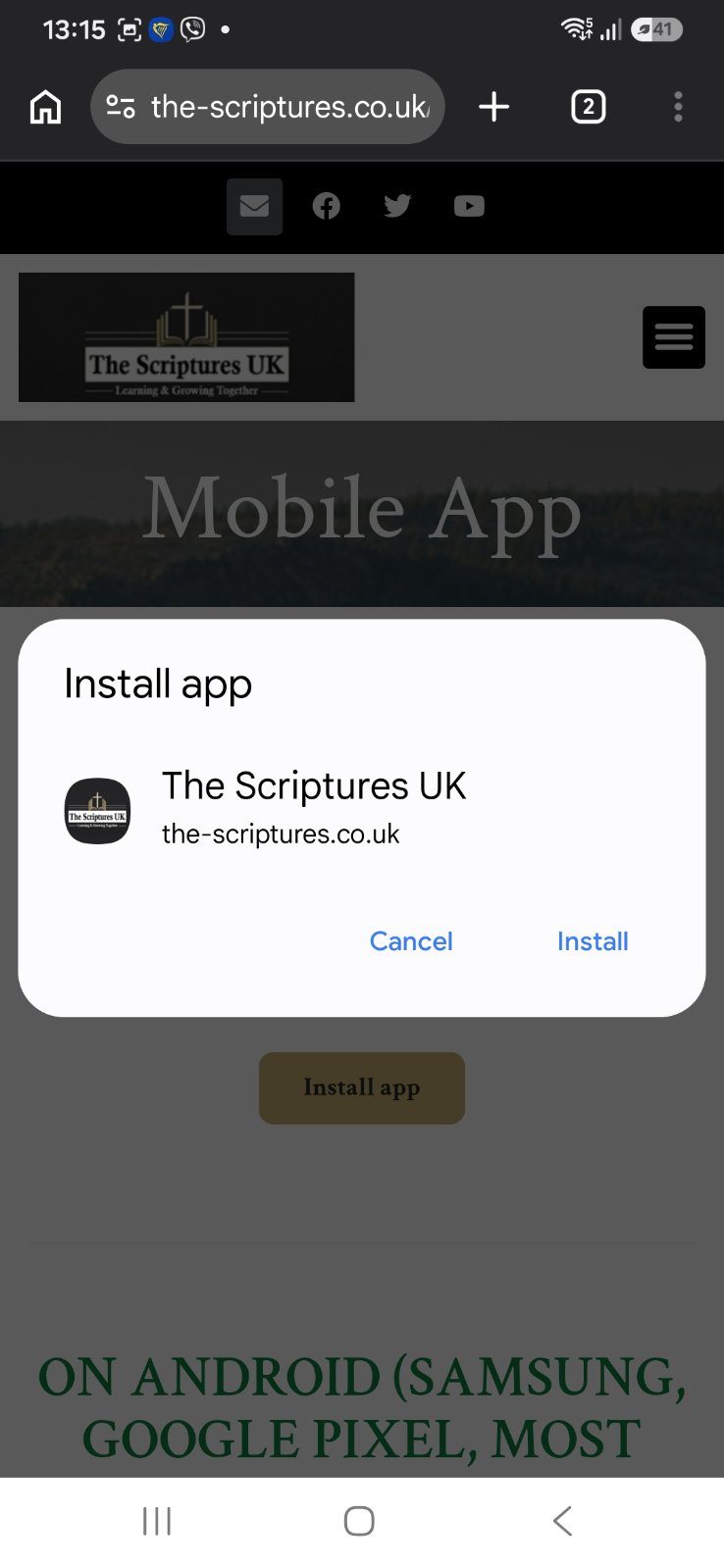
The Scriptures is now installed on your phone. You’ll find it with your other apps (in your app drawer). On many phones it lands there rather than straight on the home screen — that’s normal. To keep it on your home screen, open your apps, press and hold The Scriptures, then drag it onto the home screen. Tap it any time to open straight into the app.
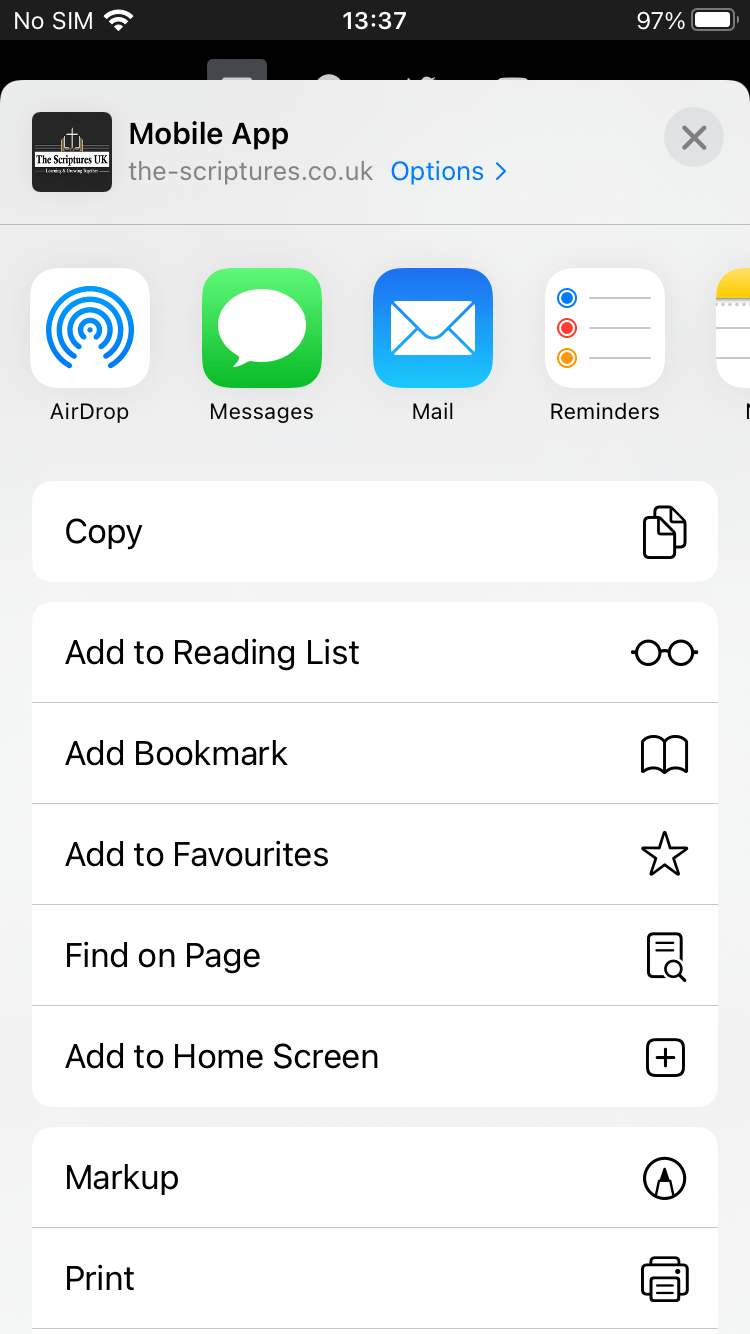
Apple does things slightly differently — it takes two quick taps:
The Scriptures icon now sits on your home screen, opening full-screen just like an app.
If you get stuck, contact us and we’ll be glad to help. Once it’s on your home screen, you’ll get to your Bible studies, devotionals and
sermons in a single tap.